
Creator Roadmap
Become a Creator-Member or Sell Your Work Without a Membership
Learn more about these options here.

Set Up Your Store

Be sure to enter a Store Name and Slug Name in the General section of the Storefront tab. (If you skip this step, your books won't appear in your store or dashboard.)
Click the Connect with Stripe button on the Billing tab. If you don't have a legal business entity established for your self-publishing business, use your legal name as your business name with Stripe.

Now You're Ready to Add a Product
E-Books, Audiobooks, physical books, and services must all be added as products.

How to Sell Books and Zines
Add Product From Creator Dashboard
Selling the same book in multiple formats (e-book, audiobook, hardcopy)? Add a separate product for each format.

Add Title, Cover, and Optional ISBN
Already have an ISBN? Enter it here! Need one? TOMC has ISBNs available for a small registration fee (but you have to login first).
Upload your cover art in JPG format.

Select Book Format
Check the box for your book's format. Books in different formats must be entered as separate products, please check only one box.

Name Your Price
Use the "General" tab to set your book’s regular price and/or schedule a sale.

Optional: if you would like to offer a coupon code, you can create one.

Want to Let Readers Name Their Own Price?
After you complete the rest of the steps in this roadmap and click Submit, you will see a link to enable the Name Your Price option.
Clicking this link opens an overlay where you can enter a minimum and maximum price. You can leave either field blank if you don't want to set an upper and/or lower limit on what customers can choose to pay. Note: You must enter 0 as the minimum price to offer readers the opportunity to receive copies of your work for free.

Want to change the minimum/maximum price or switch back to fixed pricing?
Click the "All Products" link under "Product Manager" in the Vendor Dashboard. Select the product you want to update. You'll see links to manage Name Your Price settings or disable the Name Your Price option.

Next Steps
Depending on your books format, you will need to complete additional fields.
Click the "Add File" button.

Click the upload icon and upload your e-book or zine file. To ensure the best experience for readers, we recommend using the epub format for e-book files.

Click the "Add File" button.
Click the upload icon and upload your audiobook file.
If you want to add a preview file, click the Add Media button in the Product Description section.

Check the "Manage Stock" checkbox on the Inventory tab, then enter a stock quantity.

Add your product's weight to the Shipping tab to add the corresponding USPS Media Mail shipping cost. Please don't include stickers, bookmarks, or any other extras with your book or zine, or your package might not qualify for Media Mail shipping. To qualify for Media Mail, a book (or zine) must be at least 8 pages long. If your zine is less than 8 pages, please publish it in digital form only.

If you're selling a box set that weighs more than 15 lbs, you will need to look up the shipping cost and type it into the Item Cost field manually. Leave asterisks in the Country Code, State/County Code, and Zip/Postal Code fields.

Review and Submit Your Product
Click the 'review' button. If everything is okay, the 'submit' button will appear.


Link Your Books and Help People Find Them
If your book is available in multiple formats, you'll need to create a product for each one. Next, you will link the formats and add general details about your book.
Use the Add Book Info page to enter information that will help readers discover your book.
If you need to change any of this info later, you can do so on the Edit Book Info page.
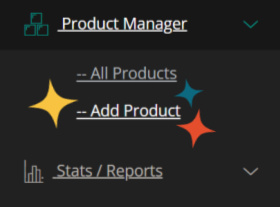
Add Product From Creator Dashboard
Add your service as a product.
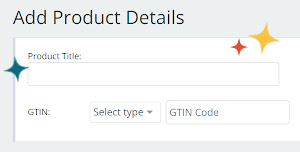
Add a Title, Image, and Description
Be sure to let buyers know how they can contact you. If you're offering editing, proofreading, beta reading, etc., specify a word limit for each instance of your service so that authors can buy as many instances as they need, depending on the length of their book.
Select Service Format
Check the box beside Services.

Name Your Price
Set your service's regular price and/or schedule a sale.
Optional: if you would like to offer a coupon code, you can create one. To share your coupon code with other members, post it in this forum thread.
Review and Submit Your Service
Click the 'review' button. If everything is okay, the 'submit' button will appear.
That's it! Once published, your service will appear in our directory.

